Thursday, 9 October 2014

How to Find the Best Deals on Android Apps

How to Find the Best Deals on Android Apps

In an earlier article, we described how you can track great deals on great iOS apps, but that information is of little use if you're an Android user. If you find yourself scouring dark corners of Google Play store in the hope of landing yourself a good deal, worry not, help is at hand. Android may not necessarily have the best paid apps, but it definitely has the best app for finding deals on paid apps. Read on.

AppSales

AppSales is our favourite discount tracking app, and it's only for Android. It comes with several advanced filtering options to narrow down your search. With this app, you can filter search results by the amount of discount being applied, or show only apps that have gone free, which had a minimum rating you set. Here's how to use it:

Zotac ZBOX Sphere OI520 Plus

Zotac ZBOX Sphere OI520 Plus 

Small-form-factor PCs such as Zotac's long-running ZBOX models are appealing to those who prioritise appearance and space savings over upgradability and expansion. Honestly, there's no need for everyone's PC to be the size of a mid-90s ATX tower - if we can shove massive amounts of power into tiny notebooks, there's no reason why we can't do it on the desktop.
For many years now, Zotac has been selling shrunken PCs in various shapes and sizes; some so small they'll fit in the palm of your hand. They've all been shaped like ordinary boxes, though - unobtrusive little rectangles that free up space on your desk, or that can just hang off the back of an ordinary LCD monitor, out of sight. The ZBOX lineup has included models well suited for use in home theatre setups, but none of them would be out of place in a living room or bedroom 

Look and feel

When set up and switched on, the ZBOX Sphere comes across as a bit menacing. When we first heard of it, we imagined that it would look quite goofy, but by leaving the dome completely blank and surrounding it with a blue LED ring, Zotac has given its latest creation quite a striking personality. It's not sleek or inconspicuous by any means, but it isn't ridiculous either. The Zbox sphere demands attention, but also simultaneously tries to be unassuming.
In terms of practicality, you can't tuck it away like most other SFF PCs. It needs to sit flat on a table and you can't balance anything on top of it either. The outer surface is matte black and has a soft texture. One extruded corner gives the sphere a flat base and rear panel, though the proportions are such that you really can't tell if you look at it head on. The seam around the dome is masked by a ring that lights up in blue when the Sphere is turned on. We can't help but imagine how much slicker this PC would have looked in a super-glossy piano black finish - unlike phones and tablets that need to be touched all the time, fingerprints wouldn't be such a problem here. 

HTC Desire Eye With 13-Megapixel

HTC Desire Eye With 13-Megapixel 

HTC on Wednesday launched the Desire Eye in a bid to cash in on the popular selfie trend in the market.
The HTC Desire Eye selfie-focused smartphone boasts of a front-facing camera with the same treatment as the rear camera. Both feature 13-megapixel sensors, and are both accompanied by dual-LED flash.

It is worth noting that the Android 4.4 KitKat-based HTC Desire Eye is one of the only smartphones with such a high resolution front-facing camera. HTC Desire Eye also features an IPX7 rating, designed to resist immersion in water up to 1 metre for 30 minutes.

Best Smartphones Under Rs. 15,000

Best Smartphones Under Rs. 15,000

1) Xiaomi Mi 3 - Rs. 13,999
It is a Chinese invasion is on in full swing and Xiaomi has a weapon that can bring us all to our knees - killer pricing. The Xiaomi Mi 3  brings the features and performance of a Rs. 30,000 device to the sub-Rs. 15,000 price bracket.

2) Asus ZenFone 5 (8GB) - Rs. 9,999
Asus's ZenFone 5  has taken the best value slot thanks to its lower price tag, better hardware and superior performance all around. There's also the matter of a microSD card slot - the Moto G's Achilles' heel is an extra advantage for the ZenFone 5. The 8GB model is available for under Rs. 10,000, making it a no-brainer as our new Best Value pick.

How to Move Non-Moveable Android Apps to the SD Card

How to Move Non-Moveable Android Apps to the SD Card


image

 Android apps install to the internal storage by default, but you can also set the SD card as your default install location. This trick allows you to move almost any app to the SD card – no root access required.

This tweak requires Android 2.2 or later. To change the default install location, you’ll need to use the ADB, or Android Debug Bridge, utility included with Google’s Android SDK.

A Warning

Some apps shouldn’t be installed to your SD card and should remain installed on the internal storage. The external storage is unavailable when your Android device is mounted on your computer, so apps that remain running all the time should be left on your internal storage. Widgets, launchers, animated wallpapers, and anything you want to use while your Android’s SD card is mounted on your computer should be left on the internal storage.

Enable USB Debugging

First, you’ll need to enable USB debugging on your Android device. Open the Settings screen, tap Applications, and select Development.

Tap the USB Debugging checkbox to enable it. This will enable debug mode, allowing you to change the settings on your Android device from your computer. You may want to disable debug mode after completing this process.
image

Install the Android SDK

You’ll need to download and install Google’s Android SDK on your computer. If you don’t already have Oracle’s Java JDK installed on your computer, you’ll have to download and install it before installing the Android SDK.
After you’ve installed both the JDK and Android SDK, launch the SDK Manager from your Start menu.
image
The ADB utility isn’t installed by default. It’s included in the Android SDK Platform-tools package – select this package and click the Install button to download and install it.
image
After the process completes, connect your Android device to your computer with its included USB cable. Windows should locate the device and install the appropriate drivers automatically. If it doesn’t, you may have to download and install the appropriate drivers from your Android device’s manufacturer. Do not mount the device after connecting it – just plug it in.

Wednesday, 8 October 2014

Web Browsing on Your Wrist

Web Browsing on Your Wrist

Nearly a month after Apple announced its smartwatch - the Apple Watch - the jury's still out on whether Apple has hit the nail on the head or not. Since the actual device won't be available for a fair amount of time still, we're all going to have to wait to know what the market thinks about this.

Part of the problem is that there's still no clear understanding about how wearables like smartwatches fit into our universe of devices. The Samsung Gear S was unveiled at the end of August and unlike many of the other wearables on the market, it is a standalone device that comes with its own SIM card slot, and doesn't require you to pair it with a phone to make calls or connect to the Internet. Opera announced on Tuesday that the Tizen-based smartwatch will also be able to run Opera Mini, a full-fledged Web browser. Of course, the Gear S hasn't shipped yet either, so how it performs in the real world remains to be seen.
On the other hand, we've seen companion devices like the Pebble or the Samsung Gear Live and the LG G Watch, which are of little use without a smartphone.
The Apple Watch continues along this continuum - it isn't a standalone device which can meet all your communication needs by itself, and that's something that a lot of people are critical about. This correspondent, for one, is actually very grateful that this is the case.

iPhone 6 Plus Production Reportedly Ramped Up on Strong Demand

iPhone 6 Plus Production Reportedly Ramped Up on Strong Demand

Apple has reportedly adjusted the production ratio in favour of iPhone 6 Plus, as it seeing much higher demand than anticipated for the large iPhone model.According to sources from the upstream supply chain cited by Digitimes, Apple has already adjusted the production ratio for the iPhone 6 and iPhone 6 Plus, although it will not affect supply immediately with productions adjustments usually taking time to reflect.
The Digitimes report adds that currently most component suppliers' inventories and manufacturers' production lines are not sufficient for the extra iPhone 6 Plus orders, and will require some time to ramp up production.
Digitimes' sources claim that iPhone 6 shipments in the second half are expected to be 3-4 million units lower than the original expectation, with the supply chain shifting resources from the smaller model to the iPhone 6 Plus.

BlackBerry Passport

BlackBerry Passport

At the launch of the BlackBerry Passport on Monday, we got to spend a little time with the device and formed some early impressions about the device. The BlackBerry Passport will go on sale at retail from October 10 at Rs. 49,990, but at the launch event, the company announced that the handset will be available for pre-order on Amazon.in and at BlackBerry Exclusive Stores from Monday.
Buyers who pre-order the phone will also get a Rs. 5,000 gift voucher on Amazon.in which can be used towards any purchases, and also 5,000 frequent flyer miles from Jet Airways.
The price tag seems pretty steep, but it competes directly with the top flagships of other well established brands, a point BlackBerry India Managing Director Sunil Lalvani was quick to make at the launch event. But does this unusual phone from BlackBerry measure up to the competition?
The first thing that you'll notice when you see the BlackBerry Passport is its massive size. The phone has a 4.5-inch display, which sounds small, but due to the square display the display seems larger. At over 3.5 inches wide, the phone is also wider than much larger phones. For comparison, the Samsung Galaxy Note 3, which has a 5.7-inch display, is 3.1-inches wide.

How to Download and Install Windows 10 Technical Preview

How to Download and Install Windows 10 Technical Preview

Microsoft unveiled the next version of Windows on September 30, choosing to skip a version number and hop from 8 to 10. While the final version of Windows 10 is expected to be released in 2015, the Technical Preview release - targeted at PC experts who understand the risks involved in downloading unfinished software - will be available starting October 1.

Understanding Windows 10 Technical Preview

In this preview, Windows 10 will go through a lot of change with updates, and you will have access to the Windows Feedback app. This app helps send feedback to Microsoft about the different features they are adding and removing to Windows 10 in the preview period and thus, helps you be a part of the team that improves and polishes the OS.
That apart, there are many new features that you can try out with Windows 10. For one thing, it has a new start menu - a blend of live tiles and classic desktop apps. The Windows apps also don't have to run in a forced full-screen mode, making them more useful for desktop users. Windows 10 also features much improved file explorer and search features.

Windows also finally supports multiple desktops now. If these are features you had been crying out for since switching to Windows 8, then the Windows 10 Technical Preview will be quite appealing.

Warning

Before you proceed to try this release, know that you might face system-breaking bugs and end up losing data. If you're installing Windows 10 on your primary PC, we suggest you take a complete backup. Microsoft recommends that you install it on a secondary PC, which is sound advice when using unfinished software.

How to download Windows 10 Technical Preview

If you still want to go ahead, then here's how you can download the Windows 10 Technical Preview.
1. Join the Windows Insider Program using this page.
2. Make sure you have a machine that meets the Windows 10 minimum system requirements:
  • Processor: 1 gigahertz (GHz) or faster
  • RAM: 1 gigabyte (GB) (32-bit) or 2 GB (64-bit)
  • Free hard disk space: 16 GB
  • Graphics card: Microsoft DirectX 9 graphics device with WDDM driver
  • A Microsoft account and Internet access

Camera Apps for iOS 8

Camera Apps for iOS 8

When you're using a smartphone camera apps, the most important feature is speed. Photography is all about capturing the perfect moment. At times, a delay of half a second could ruin a great shot. To aid this, Apple has put a camera button on the lock screen itself. This is hard-wired to the default Camera app and there's no way to make a third-party app use this button. Yes, that sucks, but until Apple gives users the ability to change default apps like the browser, email client, camera app, you have to live with that.Thankfully, the default app has improved over the years to offer features such as filters, a timer, a burst mode (just hold the shutter button) and a panorama mode for those expansive landscape shots. It also lets you control focus and exposure on any part of the frame. Tap and hold the part you want to focus on and you'll see a yellow square with the text AE/AF lock with a sun icon next to it. This locks the focus to that part of the frame. To adjust exposure on that part, slide the sun up or down.
Once you click a picture, you can add filters, change the exposure, convert to black and white and even tinker with the saturation, brightness, contrast, highlights and shadows. You can also easily post photos to other apps such as Flickr, Facebook and WhatsApp without leaving the app. This is quite enough for most people.
Third-party camera apps still shine in some ways - from giving DSLR-like manual controls such as shutter speed, ISO and manual focus, to providing a wider set of editing tools, these apps can make you feel like a professional photographer. Here are our favourites.
Manual
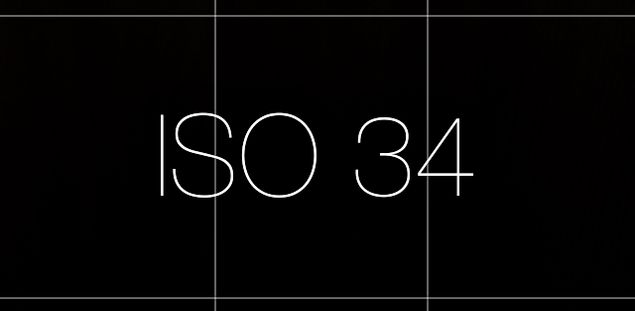
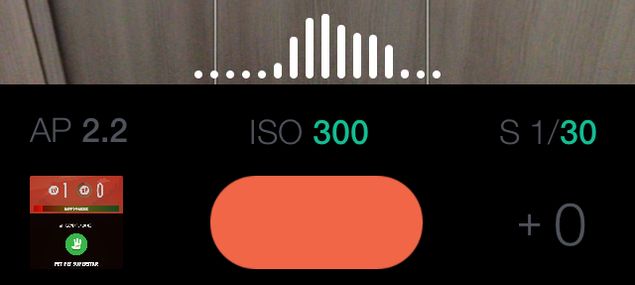
This is the best camera app for photography nerds. If you ever wished for the manual controls of a DSLR, Manual (Rs. 120) is the right app for you. The app also launched faster than any of the third-party apps we tested, although the default app is perhaps still the quickest. Manual offers nice sliding controls for shutter speed and light sensitivity (ISO). These are on the bottom panel and pretty easy to use. You can't change the aperture though - that's locked to f/2.2. On the top bar, it has controls for manual focus, several white balance modes including a temperature control slider, and flash.

manual_app_iso.jpgManual also has a live histogram just above the bottom panel. A histogram helps you see whether the image will be well-lit throughout or certain areas will be under- or over-exposed. It's a useful tool but you can't change its colour, and the white display can be very hard to see when shooting something light coloured.
When you open a photo in Manual, it shows you where it was shot and basic EXIF data (shutter speed, ISO, aperture, flash and date and time). Unfortunately, it doesn't have editing controls so you will have to use another app for that. Another problem with Manual is that the sliding control for ISO is right above the shutter button; we sometimes clicked photos accidentally when adjusting ISO.
Despite a few shortcomings, we found the added capabilities of Manual well worth the money. It is a much better choice for photography enthusiasts than the default camera app.
manual_app_histogram.jpgCamera Plus
If you're looking for an easy-to-use camera app that lets you click and edit photos, Camera Plus (Rs. 120) is a good choice. You can adjust exposure with a neat slider on the right side. There's a tilt warning feature to help you keep your shots straight - two horizontal lines show whether you've tilted your phone or are holding it straight - just line them up with the grid for a perfectly straight shot.
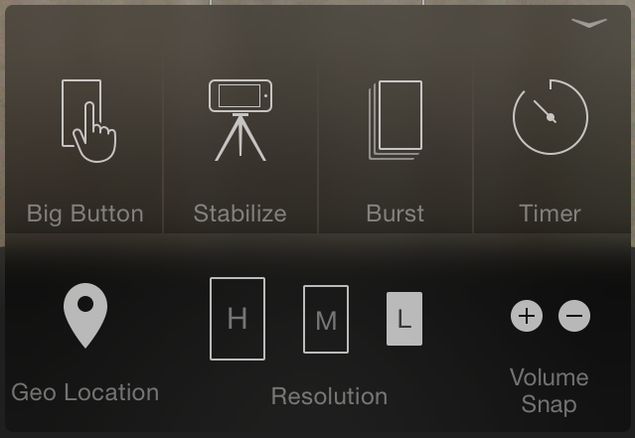
There settings button next to the shutter button lets you can choose photo resolution between high (8-megapixel), medium (2-megapixel) or low (0.5-megapixel), switch on/ off geo-location and toggle clicking photos via volume buttons. You can even turn the entire screen into a shutter. The editing features are pretty similar to the iOS Photos app, but you can also add text to pictures in Camera Plus.
camera_plus_options.jpgOur favourite feature Camera Plus is the one called AirSnap. It lets you use a second iOS device as a remote to click photos. If you have an iPhone and an iPad (or even two iPhones), you can use either one as a remote shutter. This is useful in a number of different scenarios, so you can take a picture without a timer, or even set up a camera at some weird angle with a tripod, and still be able to click even if your hand won't reach the screen.


How to Use WhatsApp on a PC

How to Use WhatsApp on a PC

One of the limitations of WhatsApp is that you can only use it on your phone. If you are not carrying your phone, you're stuck without WhatsApp.
There are several reasons why you'd want to use WhatsApp on a PC running Windows XP, Windows Vista, Windows 8, or Windows 8.1. Checking your phone is a distraction that you might want to avoid while working. It's inconvenient to switch to another device just to send a couple of quick messages. And if you've lost your phone, then you might want a quick way to message people and let them know. No matter what your reasons are, you can run WhatsApp on a PC. Here's how.
Note that while this guide is for WhatsApp, you can run almost any Android app using this method. Just replace the apk file in step 5, with the apk of the Android app you want to run. Here's a good source to download apk files.

1. You're going to need an Android emulator app to accomplish this. We've tried it with Bluestacks App Player but it should work with any other emulator too. You'll also need a mobile phone to verify the WhatsApp account.
2. Download Bluestacks App Player on your computer.
3. Run the setup file to install it. During installation, Bluestacks will ask for App Store Access and App Notifications. You can uncheck both while installing.
4. Wait for the installation to finish (it takes several minutes). During the final stages of installation, Bluestacks will run in full-screen mode. Tap the diagonal line icon on the top-right to run it in windowed mode. This makes the next few steps easy.
5. Leave Bluestacks App Player running and go to your browser. Download the WhatsApp apk file.
6. Double-click the WhatsApp.apk file that's saved on your PC. The app will automatically install itself in Bluestacks App Player.
7. In Bluestacks, you'll see a grid of apps you've installed. Find and launch WhatsApp.
8. Enter your phone number and click Verify.
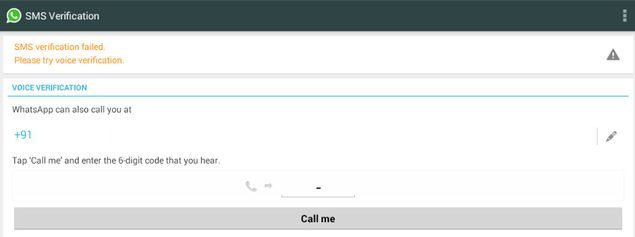
9. Now wait for 5 minutes as WhatsApp tries, and fails, to automatically verify using SMS.
10. After 5 minutes, WhatsApp will offer you an option for voice verification. Click Call me.
bluestacks_whatsapp_verification.jpg
11. You'll get a phone call. Answer it and you'll hear the verification code being spoken in loop.
12. Enter the verification in WhatsApp (running in Bluestacks) and you're good to go.
13. None of your existing contacts will show up in WhatsApp if you use this method. You can still reply to any messages you receive.
14. You can add contacts individually to WhatsApp by clicking on the three dots icon on the top-right > Contacts. Click the contact icon on the top-right, next to search. These contacts will be saved locally and will not show up on other devices. You can then start sending messages to these contacts as well.
15. Any groups you're a part of will also not show up on the PC. You will have to ask the group admin to add you to the group again.
If you're hoping to use WhatsApp on both your PC and your phone at the same time, you are out of luck. One phone number can be associated with only one device at a time - your phone will stop receiving WhatsApp messages when you're using it on the desktop. Another limitation is that you can't switch between the two devices instantly. WhatsApp imposes a 20-minute delay between two verification attempts (this delay keeps increasing with each verification attempt on the same day), so keep that in mind when setting it up on any device.


Sony Xperia Z1 Can No Longer Be Called 'Waterproof' in South Africa

Sony Xperia Z1 Can No Longer Be Called 'Waterproof' in South Africa

Sony has been asked to stop using the word 'waterproof' in relation to its Xperia Z1 smartphone in South Africa.The ruling has been made by the Advertising Standards Authority (ASA) in South Africa after a complaint from a woman regarding the handset came. The complainant stressed that the advertisements regarding the Sony Xperia Z1 were misleading.
"The word 'waterproof' in relation to this phone must be withdrawn," said the authority in its ruling issued last week. "The complaint is upheld," added the ruling (via Xperia Blog).
The woman complained that her Xperia Z1 smartphone stopped working a day after she used the handset in water. The service provider refused to repair her handset claiming that it was "water resistant", and not "waterproof." However, Sony responded by saying that the service provider was wrong and the Xperia Z1 was indeed waterproof. The Japanese company stressed that the "ports were not properly shut."
However, this was accepted by the authority. The ruling added, "It can be accepted that, depending on the context, the semantic difference between a term such as "waterproof" and "water resistant" might carry two very different meanings to the hypothetical reasonable person."
"The complainant submitted, in essence, that the advertisement is misleading as it implies that the advertised device is waterproof whereas the complainant's device stopped working a day after she had used it in water. Her cellular service provider refused to repair the phone, insisting that it is merely 'water resistant', and not 'waterproof' as claimed. When attempting to have Sony repair the faulty device was unsuccessful, as Sony insists that the 'ports' were not properly shut. Given that this phone cost roughly R9000, and given the persistent reminders from the phone to close the ports, the complainant would not have risked damaging the device deliberately. She insisted that the ports were closed as required, yet the phone stopped working."


Looking Into Complaints Over Flipkart's Big Billion Day Sale

Looking Into Complaints Over Flipkart's Big Billion Day Sale


After receiving "many complaints" from traders on Flipkart's massive discount sale, government on Wednesday said it will look into the concerns and take a call on whether more clarity is required on e-commerce retail business.

Flipkart's 'Big Billion Day' sale on Monday, that offered steep discounts on various products, has raised concerns among small and big traders that such campaigns would badly affect players in the traditional retail market.

"We have received many inputs. Lot of concerns have been expressed. We will look into it," Commerce and Industry Minister Nirmala Sitharaman told reporters in New Delhi.
When asked whether the government is considering any particular policy for e-commerce retailing, she said the matter would be looked into.
"Now there are many complaints. We will study the matter... Whether there is a need for a separate policy or some kind of clarification is needed, we will make it clear soon," Sitharaman, who is also the Minister of State for Finance and Corporate Affairs, said.
In recent times, many e-commerce portals have been coming out with steep discount sales.
Flipkart has said that its 'Big Bilion Day' sale saw 1.5 million people shopping at its portal. It also claimed that products worth over Rs. 600 crore were sold in just 10 hours under the scheme.
Earlier this week, traders body CAIT had demanded the Commerce and Industry Ministry take steps to monitor and regulate online businesses.

Lenovo A328 Launched at Rs. 7,299

Lenovo A328 Launched at Rs. 7,299

The company has announced that the new A-series smartphone will be available in Black and White colour variants starting Wednesday across the company's stores and other retail outlets.
The Lenovo A328 has been launched in India at Rs. 7,299.
Notably, the launch price of the Lenovo A328 is in-line with what an established Mumbai-based retailer claimed last week.
The smartphone runs Android 4.4 KitKat out-of-the-box and features a 4.5-inch FWVGA (480x854 pixels) display. It is powered by a quad-core MediaTek (MT6582M) processor clocked at 1.3GHz, clubbed with 1GB of RAM. There is 4GB of built-in storage, which can be further expanded via microSD card (up to 32GB).

The dual-SIM smartphone sports a 5-megapixel fixed focus rear camera with flash, while also housing a 2-megapixel front camera. The Lenovo A328 packs a 2000mAh battery that is rated to deliver up to 240 hours of standby time and up to 21 hours talk time on 2G network. The handset comes with 3G, GPRS/ EDGE, GPS/ A-GPS, Micro-USB, Bluetooth, 3.5mm audio port, and Wi-Fi connectivity options. The Lenovo A328 measures 132x68.5x11mm and weighs 140 grams.
Additionally, the smartphone comes pre-installed with some proprietary DOit apps, such as SECUREit which will help users track, analyse and optimise their data usage; the SHAREit app for fast phone-to-phone data transfer capability without the need for Wi-Fi or mobile network; and SYNCit to let users to have a permanent backup of all their data and whilst making it accessible on any device.